FI- Purchase Invoice Verification & Submit
Executed by
Accounts Executive - Payable / Finance Manager
Processes triggered from
- Campaign Management
- PO-based Procurement
- Service/Contract based Procurement
- Non Po based Procurement
- Taxation - Domestic WHT "(Variant)", WHT 26 "(Variant)",Vat "(Variant)"
Navigation
Home > Go to Buying Module > Go to Purchase Invoice
Steps
Open the Purchase Invoice module.
Select the Purchase Invoice based on the PI number (status: Draft).
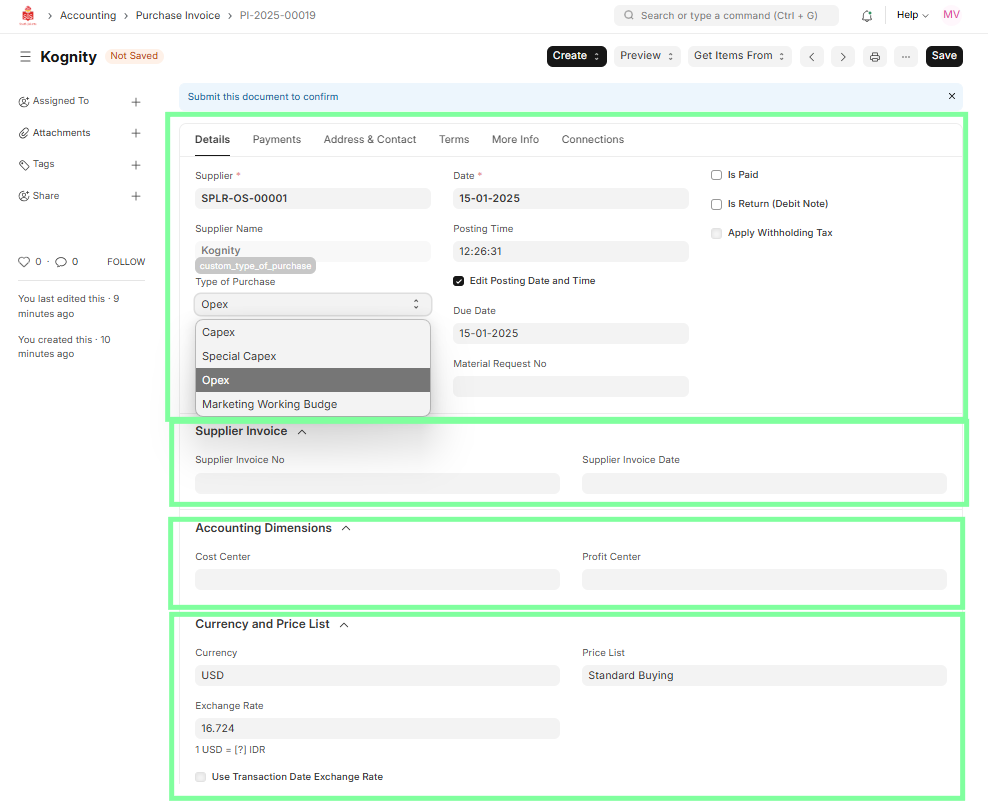
Verify the following details:
Header Data:
- Supplier Name
- Posting Date (The Posting Date is editable before submission, allowing users to adjust the date as required by clicking on 'Edit Posting Date and Time'.)
- Supplier Invoice No.
- Supplier Invoice Date
- Currency and Price List(If the currency is other than IDR, the exchange rate needs to be maintained.)
Accounting Dimension (Cost Center at the header level is not mandatory as it will not be applicable for the Payable Account.)
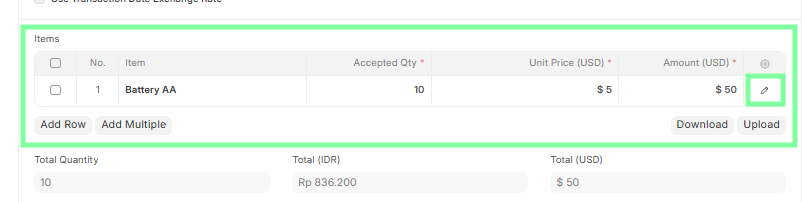
 Line Item Data:
Item Code
- Quantity
- Unit Price & Total (Rate × Quantity)
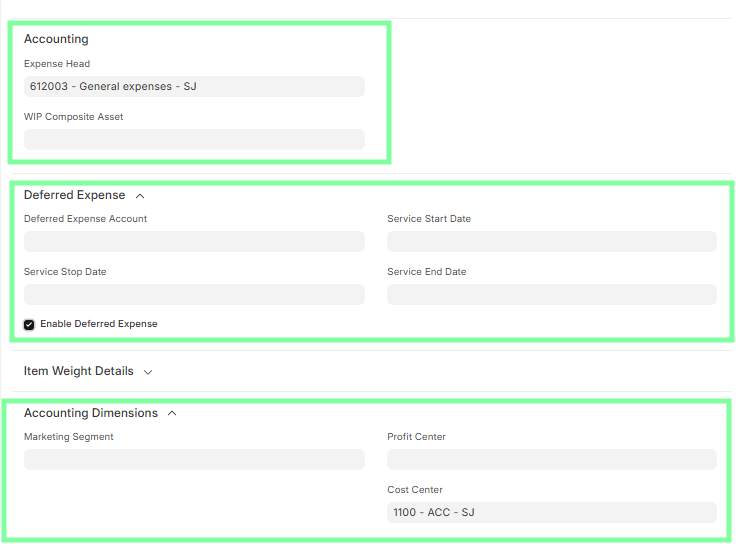
Accounting Dimensions
-Cost Center & Profit Center are mandatory.
-In case of a Purchase Type Marketing Working Budget - Cost Center, Profit Center, and Marketing Segment must be specified.
- Deferred Expense (If applicable, follow these steps):
- Click on 'Enable Deferred Expense'
- Update Deferred Expense Account
- Update Service Start Date
- Update Service End Date
- Confirm Payment Terms against the PO/contract.
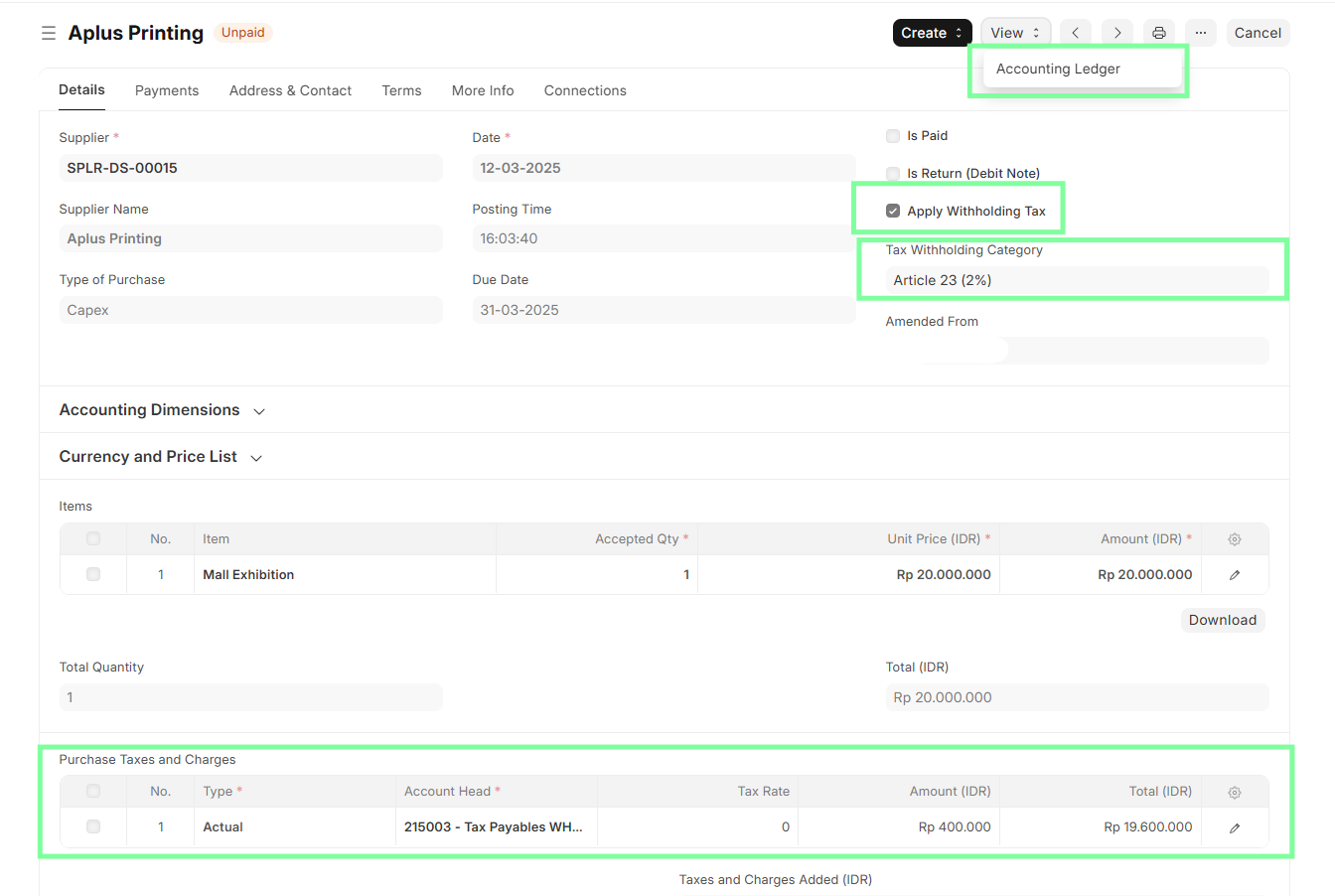
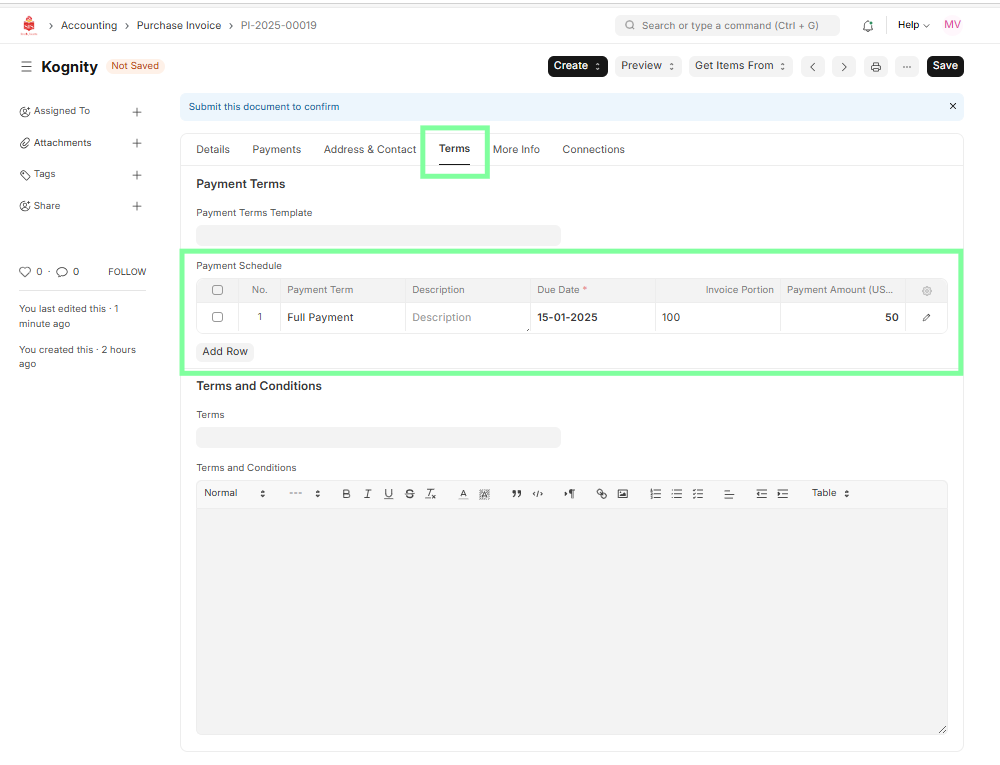 5. Check if Withholding Tax (WHT) is applicable:
- Ensure WHT is maintained in the supplier master.
- Select the 'Apply Withholding Tax' checkbox in the purchase invoice.
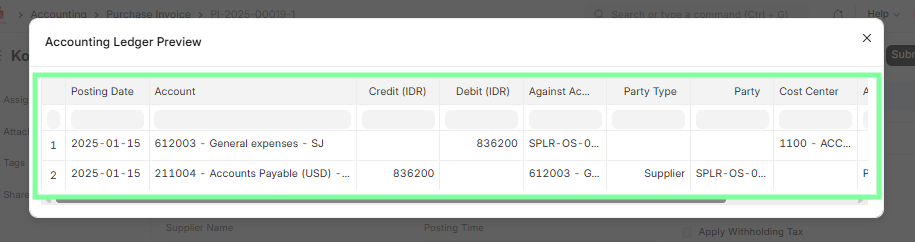
- Verify WHT amount & rate in Preview Accounting Ledger before submission.
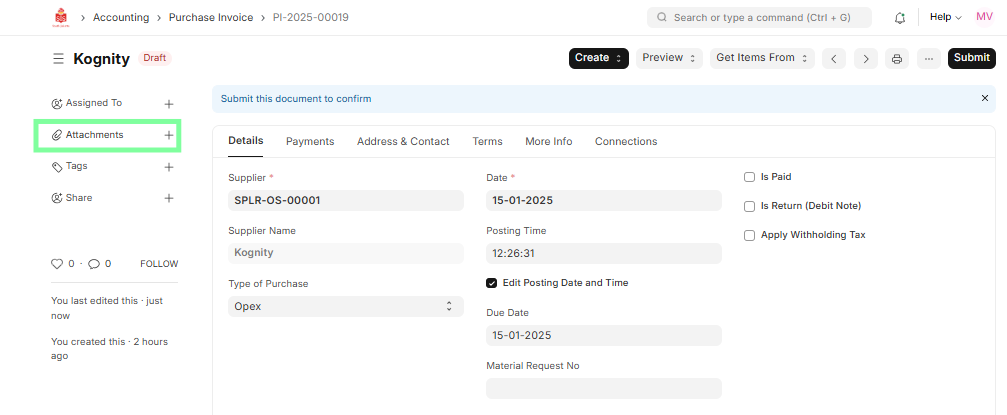
If applicable, attach supplier documents for tax deduction under Article 26:
- Navigate to the invoice where WHT is deducted.
- Click the attachment section and upload required documents.
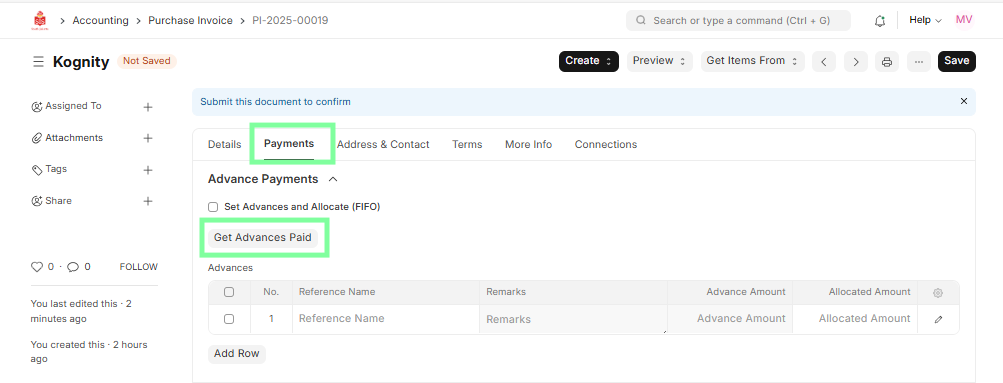
Match the invoice against advance payment if applicable.
- Conduct a Final Review of the invoice and preview the accounting ledger.
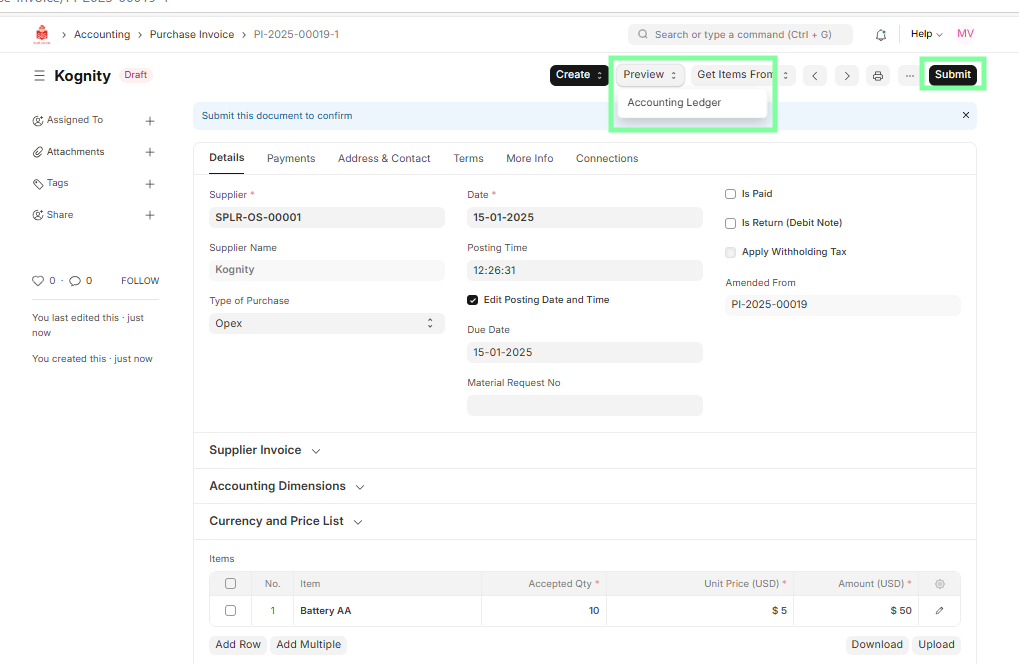
- Submit the Purchase Invoice and generate the corresponding journal entry.